블로그 약 MSI MAG 321CUP Monitors Face Brightness Control Issues

인증
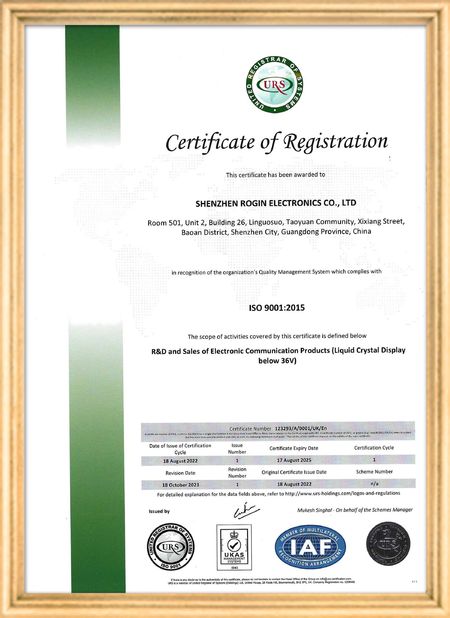
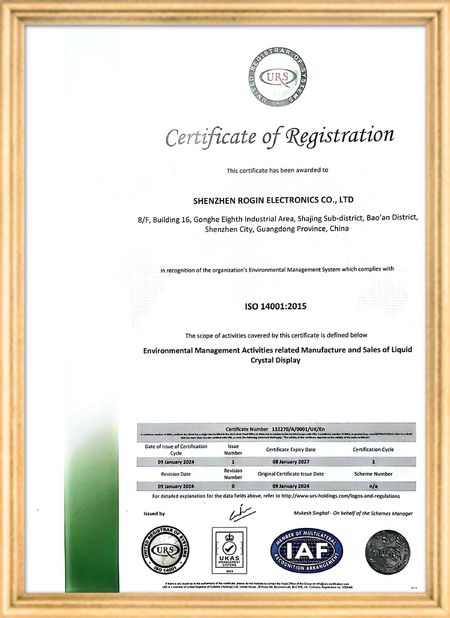
중국 Shenzhen Rogin Electronics Co., Ltd. 인증
고객 검토
이 디스플레이는 전동차에서 완벽하게 작동합니다. 높은 밝기, 반등 방지, 그리고 장기적인 진동에도 안정적입니다. 승객들은 맑은 시야를 좋아합니다.

—— 카스퍼 소렌센

정확한 색상, 빠른 반응, 정상적인 낮은 온도 시작

—— 니콜 베커

쉬운 설치, 넓은 온도 범위, 밝은 환경에서의 뛰어난 가시성. 이 디스플레이는 당사의 모든 산업 장비 요구 사항을 충족합니다.

—— 조반니

이 높은 밝기의 LCD는 산업용 제어판에 적합합니다. 그들은 직접적인 작업실 햇빛 아래에도 결정적으로 맑고 문제없이 24/7 작동합니다..

—— 루카스 뮬러

제가 지금 온라인 채팅 해요
회사 블로그
MSI MAG 321CUP Monitors Face Brightness Control Issues
에 대한 최신 회사 뉴스 MSI MAG 321CUP Monitors Face Brightness Control Issues

Have you ever been ready to adjust your monitor’s brightness, only to find that the official tutorial video no longer works? For users of the MSI MAG 321CUP monitor, this guide provides alternative solutions to adjust brightness settings, even if the manufacturer’s original resources are inaccessible.

Brightness adjustments can typically be made through three primary methods: the monitor’s physical buttons, the operating system’s display settings, or dedicated software provided by MSI. If the official video is unavailable, these steps will help you troubleshoot effectively.

1. Using Physical Buttons

The MSI MAG 321CUP monitor is equipped with physical buttons to access its On-Screen Display (OSD) menu. These buttons allow users to modify settings such as brightness and contrast. Refer to the user manual for specific button locations and navigation instructions. If the manual is unavailable, gently press or touch the buttons along the monitor’s bezel to open the OSD menu, then locate the brightness adjustment option.

2. Operating System Settings

Both Windows and macOS include built-in display settings for brightness control. On Windows, navigate to Settings > System > Display and use the brightness slider. For macOS, open System Preferences > Displays to adjust brightness. Ensure your operating system recognizes the monitor and that display drivers are up to date.

3. MSI Software Solutions

MSI may offer specialized software to manage monitor settings, including brightness. If such software is installed, check its configuration options for brightness controls. If not, visit MSI’s official website and download the latest drivers or utilities tailored to your monitor model.

4. Troubleshooting Persistent Issues

If none of the above methods work, potential hardware or software issues may be present. Verify that all cables are securely connected, try using a different cable, or test the monitor with another device. If problems persist, contact MSI’s customer support or consult a professional technician.

선술집 시간 : 2026-05-27 00:00:00 >> blog list
연락처 세부 사항
Shenzhen Rogin Electronics Co., Ltd.

담당자: Mr. Kelvin Zhu

전화 번호: +86 15919061504

회사에 직접 문의 보내기 (0 / 3000)